The UPN
Migration Hub.
The user-facing piece of an 8-month project to migrate every Kry healthcare professional off the @x.kry.se subdomain – across two countries, three languages, and 25+ business-critical apps. A calm, four-page hub, built so nobody noticed.
An 8-month identity migration that moved ~1,500 healthcare professionals across Sweden and Norway off a legacy subdomain – touching authentication, MFA, 25+ business apps, and every device in 40+ clinics. I owned the project end-to-end: discovery, stakeholder coordination, the user-facing hub, the automated comms pipeline, the post-migration monitoring dashboard, and the Intune device remediation scripts.
Both countries went live on consecutive weekends, on schedule, with zero lockouts. 80% of users signed in with their new credentials within two days. The migration generated just 24 support tickets total (1.6% of the population) – against a vendor baseline of 5–10% for changes of this scope. A custom Graph API pipeline delivered ~6,000 personalised messages across email and Teams with zero failures. A KQL-powered monitoring dashboard tracked every sign-in in near-real-time, gated behind Entra ID, auto-refreshing every five minutes.
The rest of this post covers how it was built – the hub design, the comms automation, the monitoring tooling, and the device-level fixes that made those numbers possible.
Kry's clinicians had been signing in with name@x.kry.se for years. The subdomain was a relic of how we split business users and healthcare professionals.
The plan was to drop the subdomain from every username, in both Sweden and Norway, on consecutive Sundays. The technical change was small. The downstream change was not. The username is the user's identity in Entra ID – it touches authentication, MFA, mobile devices, M365, Intune, every SSO integration, and every system that ever cached a UPN. We had ~1 500 doctors, psychologists and nurses across 40+ clinics, plus all the systems they touched daily.
Worse, during pilot testing we discovered that the obvious path – click your profile tile, type your password – silently fails after the change. Clinicians would need to know to click “Other user” on first login. That made communication the riskiest part of the whole project.
Early on, we updated the HRIS-to-Entra ID provisioning mapping so new hires started getting @kry.se and @kry.no from day one. Natural attrition meant the migration population shrank each month – a slow-burn fix running alongside the big-bang weekend cutover.
So I needed somewhere clinicians could land – quickly, on any device, in any of three languages – and get exactly the information they needed to sign in tomorrow. Nothing more.
Mapping Every Affected System in Entra ID
Before any clinician saw a thing, two engineers and I spent four months auditing every system that touches a Kry username. ~25 sub-tasks in our issue tracker, one per app, each ending in a short risk report covering identity, permissions, data ownership, duplication risk and pilot testing.
Enterprise Apps · SSO
M365 & Azure · Identity
Medical Systems
Device & Profile
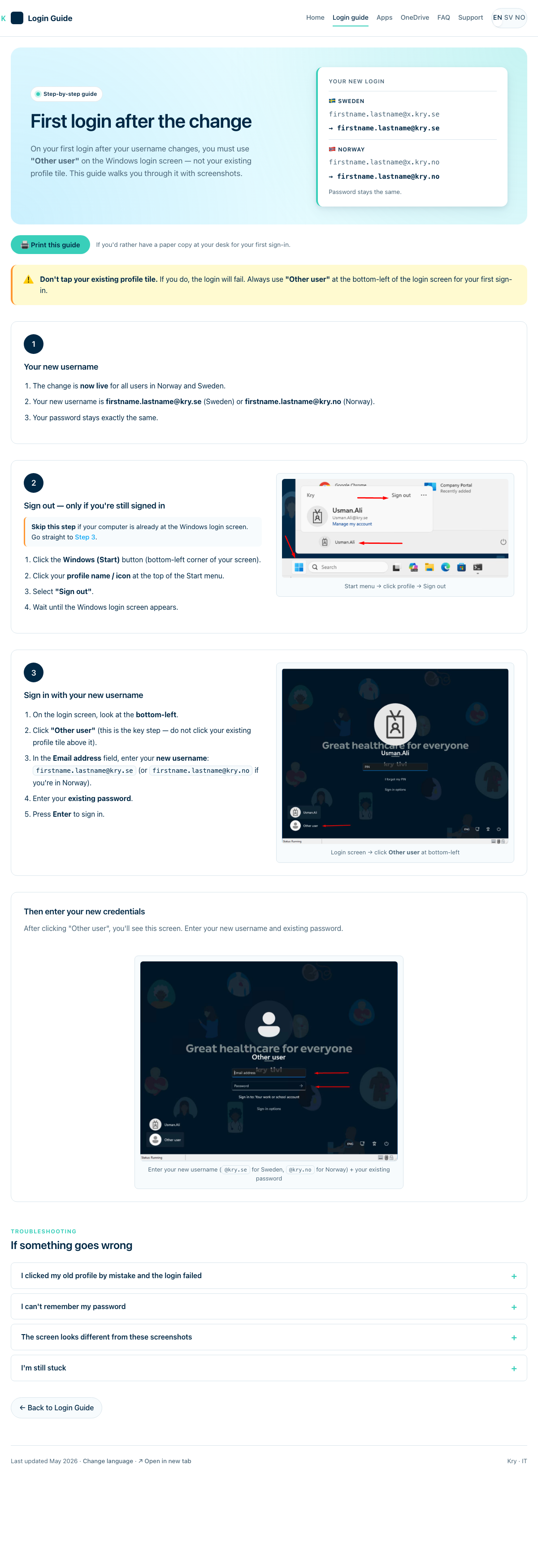
The big finding: Windows wouldn't let a clinician sign in to their existing local profile with the new username – it would silently fail. The only path was “Other user” at the bottom-left of the login screen. That single discovery, surfaced by pilot testing, became the whole reason the hub existed.
The hidden risk: Pre-migration auditing revealed that 53 out of ~800 Swedish users lacked a personal email address for self-service password reset. Without one, a forgotten password post-migration meant a lockout with no self-service path. We flagged these users to their managers two weeks before go-live.
Real blockers: The scheduling tool’s API didn’t handle domain changes cleanly – weeks of back-and-forth with the vendor before it was resolved. The job board silently dropped assigned listings when a user’s email changed. And the HRIS tool needed manual intervention for ~20 users whose provisioning profiles didn’t auto-update.
The Self-Service Hub – Four Pages, One Voice
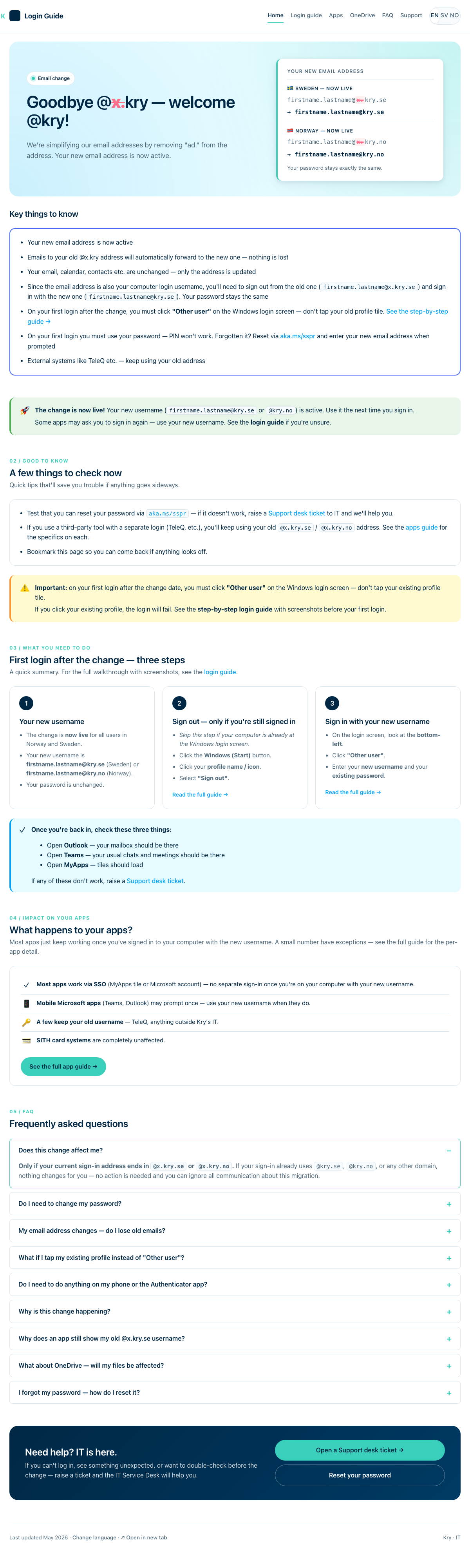
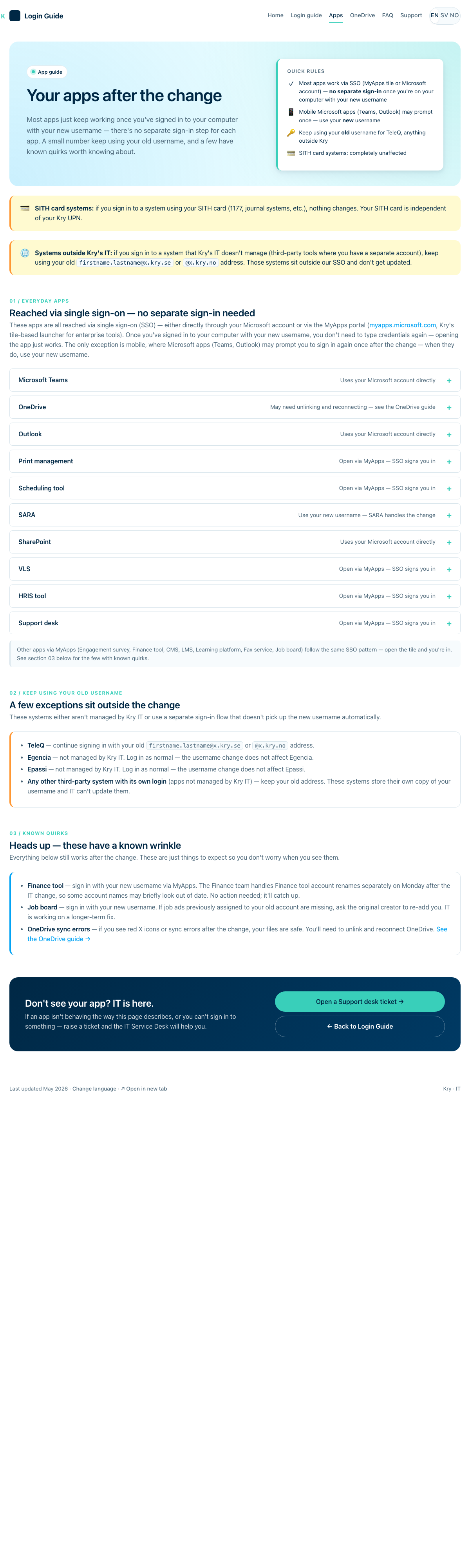
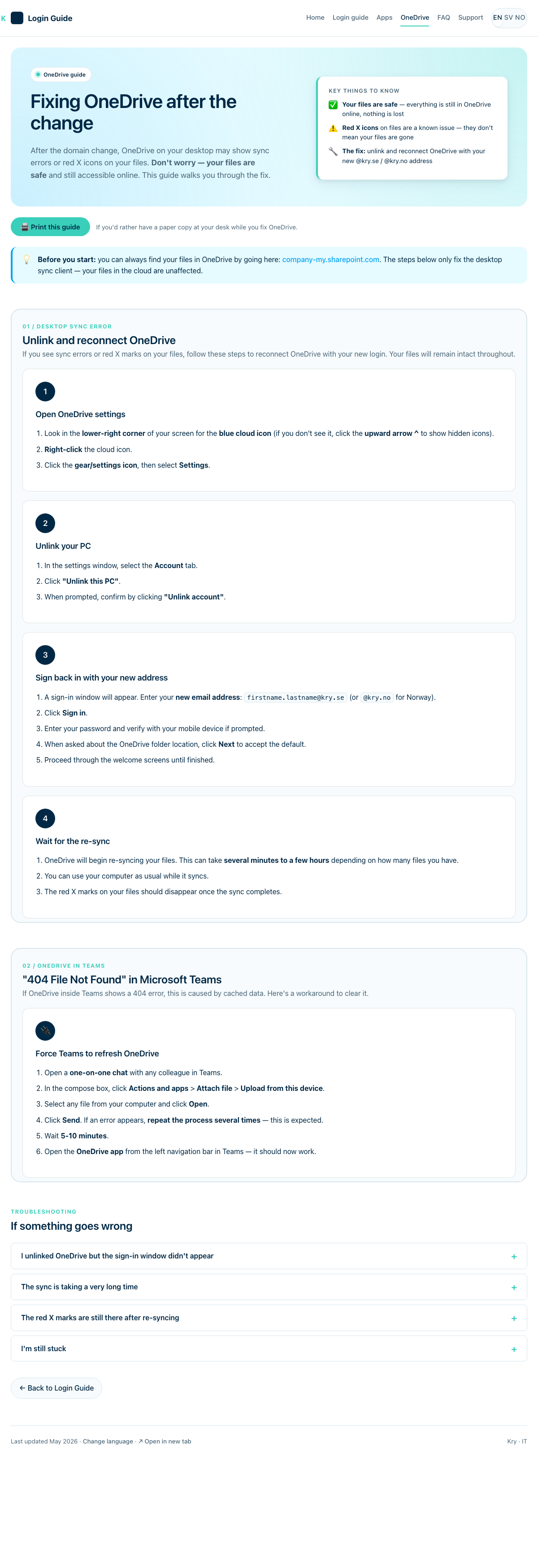
Each page does exactly one job. No marketing copy, no clever framing – just the answer a clinician would want at the moment they need it. Tap any card to see the full page.
UX Design Decisions for a Migration Portal
A few principles I held the project to. Most were lifted directly from Kry's existing patient-app voice – calm, declarative, second-person. Clinicians deserve the same care patients get.
One question per page
Home answers “what's changing & when”. Login guide answers “how do I sign in tomorrow”. Apps answers “will my app still work”. OneDrive answers “why is there a red X on my files”.
Anchor on the date
Every page reminds you of your country's go-live date – in big, dated, country-flagged blocks. If you only read three words on the site, they should be “Monday 25 May” or “Monday 1 June”.
No marketing, no jargon
No exclamation marks. No “great news!”. The product never says “we recommend” – it says “you'll need to”. Even the title is unglamorous: Your login is changing. That's the whole pitch.
Pre-empt the panic
The OneDrive sub-page exists because we knew red X icons would appear and clinicians would assume their files were gone. Better to publish the fix on day zero than answer 200 support tickets on day one.
Readable on a phone in a hallway
Single column. Generous line-height. 17 px body. No collapsible nav. The whole site is < 100 KB without YouSans and works on the 5-year-old iPads our nurses carry between rooms.
Print-friendly, for the desk
A “Print this guide” button on the login guide and OneDrive pages – so a clinician can pin a paper copy next to their workstation for Monday morning. Several did.
Cross-Team Coordination Across Ten Channels
Clinicians don't read SharePoint announcements. So the hub didn't try to be the broadcast – it tried to be the destination every other channel pointed to. I designed it knowing it would be the last click of a worried clinician, not the first.
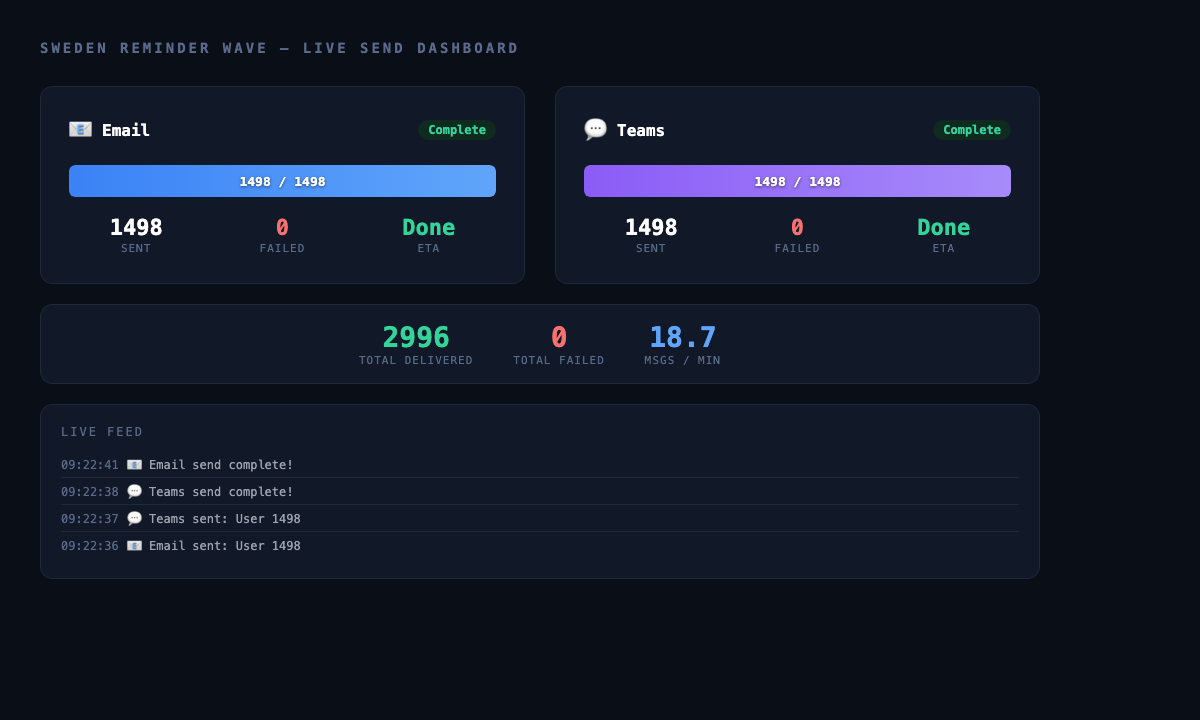
Across both countries and both waves, the pipeline pushed ~6,000 messages – email and Teams, start and end of the week before each go-live – with zero failures. Every message was personalised with the recipient’s old and new username and linked directly to the hub.
Originally scoped as a single SharePoint page based on an existing Swedish PDF. I rescoped it to a multi-page web hub so it could be linked deep (the OneDrive recovery URL alone got 200+ visits on go-live Monday), translated cleanly, and printed when needed.
Localising a Migration Hub into Three Languages
Sweden, Norway and English all needed to ship at the same fidelity. I built the translation pipeline around a single Markdown file the reviewers actually wanted to use.
The brief asked for three languages. The hard problem wasn't translating – it was keeping three HTML files in lockstep over weeks of copy revisions, with translators who weren't going to learn git.
So I made the source of truth a single file: CONTENT.md. One row per string, three columns. Reviewers update the SV or NO cell, then sync into the matching HTML. The DOM structure stays identical across all three; only text changes.
It worked. The SV reviewer flagged a tone issue mid-project (“MFA” was too abrupt) – we updated three rows in CONTENT.md, synced into six HTML files, and shipped. No diffs, no merge conflicts.
A native Swedish reviewer provided 30+ inline corrections on the machine-drafted copy – catching tone issues, awkward phrasing, and places where a technically correct translation wouldn’t scan naturally for a clinician mid-shift. That feedback loop shaped the final voice across all three languages.
# CONTENT.md

## Translation status
- EN: Complete (source of truth)
- SV: Partial review
- NO: Pending

## Hero (home page)
| Where    | EN              | SV              | NO              |
|----------|-----------------|-----------------|-----------------|
| eyebrow  | Email change    | E-postbyte      | E-postendring   |
| h1       | Goodbye @x.kry  | Hej då @x.kry   | Farvel @x.kry   |
| pwd-note | Password stays  | Lösenord är ... | _TODO_          |
| ...      | ...             | ...             | ...             |
Three sentences I sweated over.
If a clinician only reads one sentence on the site, I want it to do the job. These three each rewrote themselves a dozen times.
Your password stays exactly the same.
Don't tap your existing profile tile. If you do, the login will fail.
Your files are safe – they're still in OneDrive online.
Static HTML – Boring Tech, On Purpose
The whole hub is plain HTML, one CSS file, ~10 lines of vanilla JS. No build step, no framework, no analytics. Edit a file, push, done. Deliberately the least-impressive stack I could get away with.
The migration ran on a Sunday night. If anything broke, I needed to be able to edit a paragraph from my phone and push it before clinicians woke up. So: no framework, no build, no surprises.
Automated Teams Notifications via Graph API
You can't hand-send thousands of personalised emails and Teams chats across two countries in a morning. I built a Graph API send pipeline in PowerShell – one script for email, one for Teams – with dry-run mode, resume-from-log for interrupted sends, and a real-time dashboard that polled a JSON file the scripts wrote to. Each wave hit ~1,500 users across both channels; we ran it twice per country, start and end of the week before go-live.
Each market got three waves. Wave 1 (T-7 days) was the heads-up: “your email address is changing.” Wave 2 (T-3 days) was the reminder with a Monday-morning checklist. Wave 3, sent on go-live Monday, confirmed the change was done and showed the old address struck through next to the new one.
Every message was personalised with {{DisplayName}}, {{OldEmail}}, and {{NewEmail}} – template variables replaced at send time from the user CSV. The subject line changed per wave. Each send logged to a timestamped CSV so an interrupted run could resume from where it left off.
The email path was straightforward – Graph API’s Mail.Send works with app-only (client credentials) permissions. Teams was harder: Graph cannot send 1:1 chat messages via application permissions. The workaround was ROPC (Resource Owner Password Credential) flow – a service account acquiring a delegated token non-interactively, then creating a chat and sending an Adaptive Card as that user. ROPC is generally discouraged in production because it bypasses interactive MFA, but here it was a pragmatic choice for a short-lived send window: the flow was enabled only for the duration of each send run, scoped to a dedicated service account with no mailbox or broader access, and disabled immediately after.
# Auth via client credentials
$tokenBody = @{
    client_id     = $config.clientId      # <client-id>
    client_secret = $config.clientSecret  # <client-secret>
    scope         = "https://graph.microsoft.com/.default"
    grant_type    = "client_credentials"
}
$token = (Invoke-RestMethod -Method POST `
    -Uri "https://login.microsoftonline.com/$($config.tenantId)/oauth2/v2.0/token" `
    -Body $tokenBody).access_token

$users = Import-Csv -Path $csvPath
$progressFile = Join-Path $PSScriptRoot "send_progress.json"

foreach ($user in $users) {
    $htmlBody = $template
    $htmlBody = $htmlBody -replace '\{\{DisplayName\}\}', $user.DisplayName
    $htmlBody = $htmlBody -replace '\{\{OldEmail\}\}', $user.UPN
    $htmlBody = $htmlBody -replace '\{\{NewEmail\}\}', ($user.UPN -replace '@x\.kry\.se$', '@kry.se')

    $mailPayload = @{
        message = @{
            subject      = $subjectLine
            body         = @{ contentType = "HTML"; content = $htmlBody }
            toRecipients = @( @{ emailAddress = @{ address = $user.Mail } } )
        }
        saveToSentItems = $false
    } | ConvertTo-Json -Depth 5

    Invoke-RestMethod -Method POST `
        -Uri "https://graph.microsoft.com/v1.0/users/$($config.serviceAccount)/sendMail" `
        -Headers $headers -Body $mailPayload

    # Update progress JSON (consumed by the live dashboard)
    Update-Progress -Sent (++$sent) -Total $users.Count -Status "running"
    Start-Sleep -Milliseconds 250
}# Token 1: Client credentials (user lookups)
$ccToken = Get-GraphToken -GrantType "client_credentials"
# Token 2: ROPC (chat operations as service account)
# Graph cannot send Teams 1:1 chats via app-only permissions
$ropcBody = @{
client_id = $config.clientId
client_secret = $config.clientSecret
scope = "Chat.ReadWrite ChatMessage.Send"
username = "svc-automation@company.se"
password = $Password # passed as parameter, never stored
grant_type = "password"
}
$chatToken = (Invoke-RestMethod -Method POST `
-Uri "https://login.microsoftonline.com/<tenant-id>/oauth2/v2.0/token" `
-Body $ropcBody).access_token
# Resume from previous log if interrupted
$alreadySent = @{}
if ($ResumeLog) {
Import-Csv $ResumeLog | Where-Object { $_.Status -eq "Sent" } |
ForEach-Object { $alreadySent[$_.Email] = $true }
}
foreach ($user in $users) {
if ($alreadySent.ContainsKey($user.Mail)) { continue }
# Step 1: Create 1:1 chat between service account and recipient
$chatPayload = @{
chatType = "oneOnOne"
members = @(
@{ "@odata.type" = "#microsoft.graph.aadUserConversationMember"
roles = @("owner"); "user@odata.bind" = "https://graph.microsoft.com/v1.0/users/$svcUserId" },
@{ "@odata.type" = "#microsoft.graph.aadUserConversationMember"
roles = @("owner"); "user@odata.bind" = "https://graph.microsoft.com/v1.0/users/$($user.Id)" }
)
} | ConvertTo-Json -Depth 5
$chat = Invoke-RestMethod -Method POST -Uri "https://graph.microsoft.com/v1.0/chats" `
-Headers $chatHeaders -Body $chatPayload
# Step 2: Send Adaptive Card as the service account
$cardPayload = Build-AdaptiveCard -User $user
Invoke-RestMethod -Method POST `
-Uri "https://graph.microsoft.com/v1.0/chats/$($chat.id)/messages" `
-Headers $chatHeaders -Body $cardPayload
}
Post-Migration Monitoring with Log Analytics
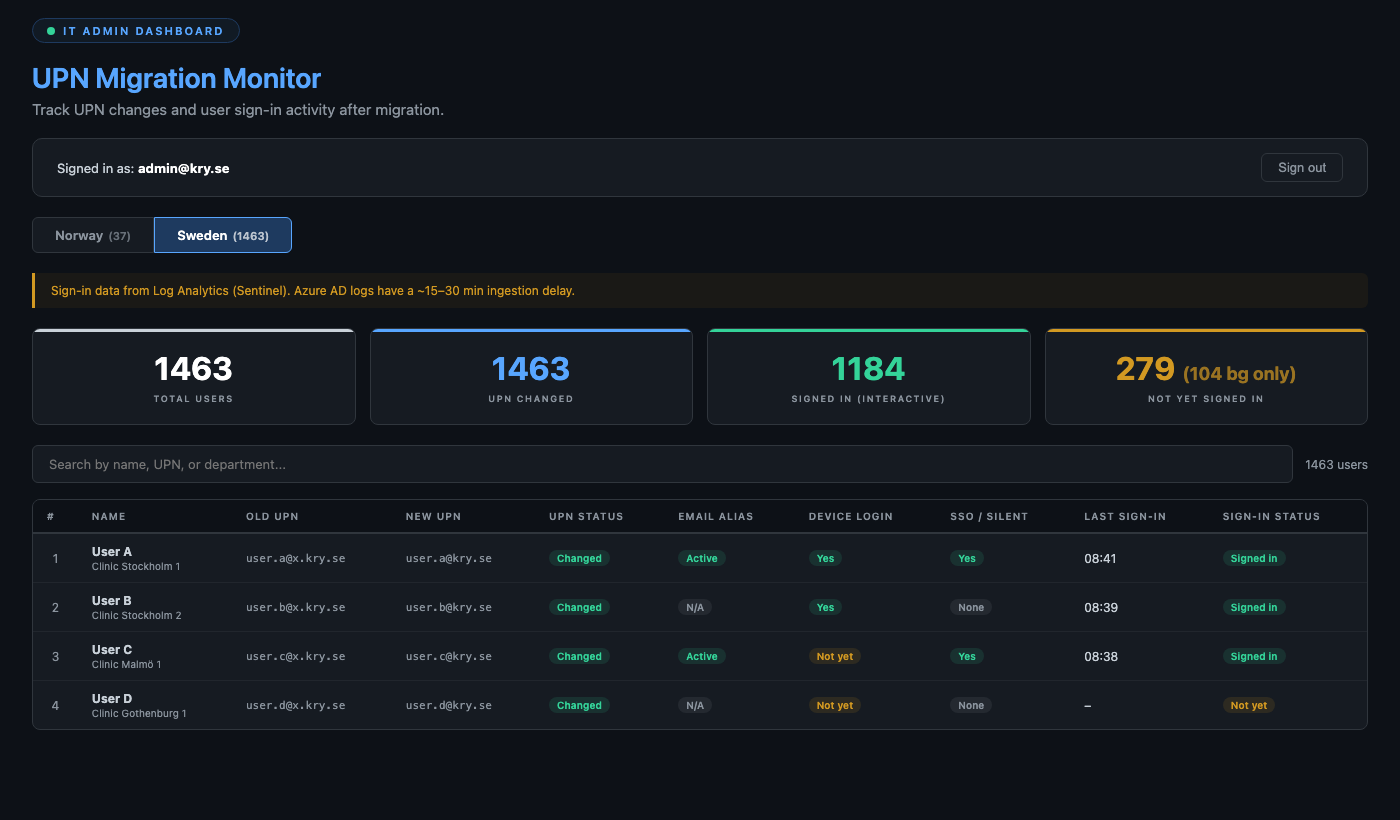
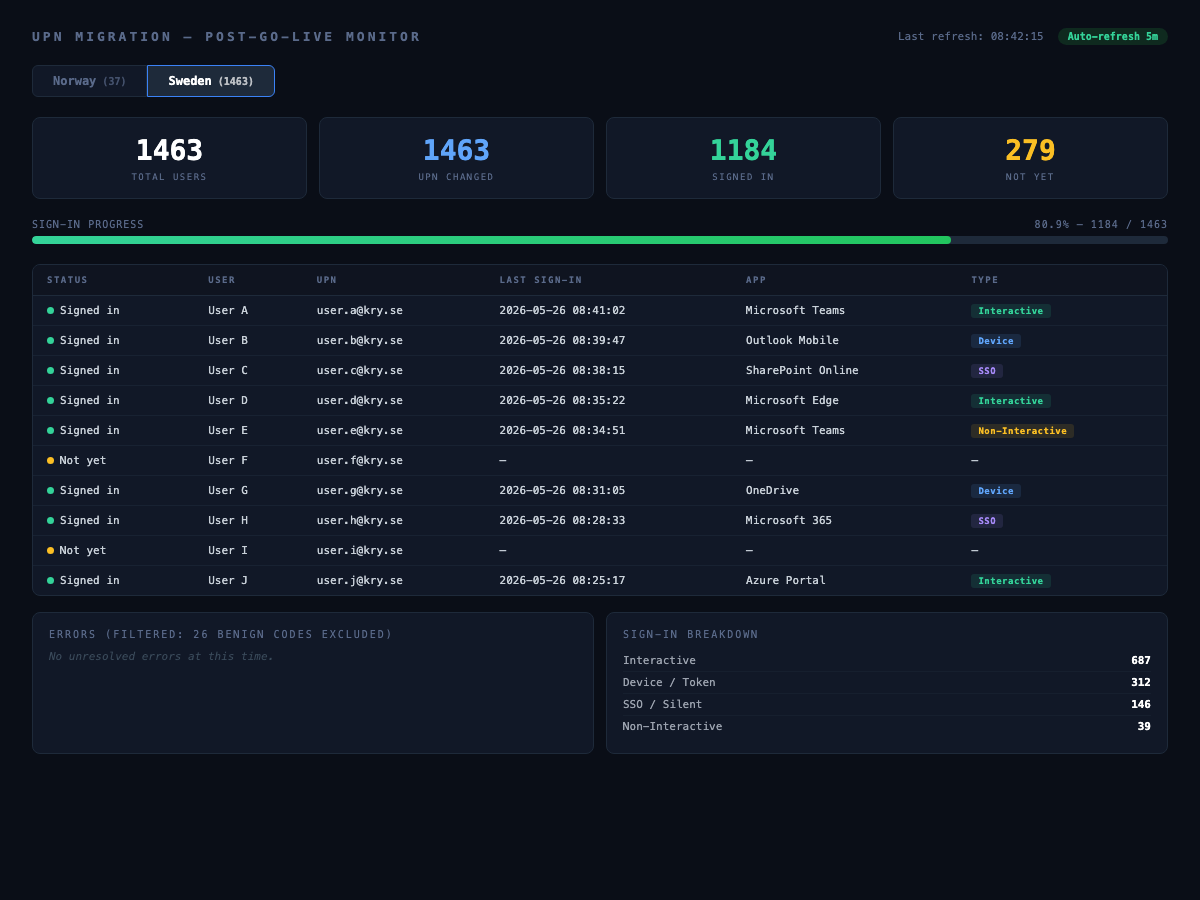
After go-live, you need to know who has signed in, who hasn’t, and whether errors are real failures or just noise. I built a browser-based monitoring dashboard that queried Azure Log Analytics with KQL, authenticated via MSAL, and auto-refreshed every five minutes.
Microsoft Graph sign-in logs are paginated, delayed by 15–30 minutes, and don’t support real-time aggregation. Log Analytics with Sentinel gave us KQL – unioning SigninLogs and AADNonInteractiveUserSignInLogs in a single query, filtering by the cutoff timestamp, and getting near-real-time results. We were already ingesting sign-in logs into Sentinel, so the infrastructure was free.
The dashboard distinguished between interactive sign-ins (a clinician actually typing their password), device logins (Windows Sign In, Authentication Broker), and SSO/silent refreshes. It also filtered out ~26 benign Azure AD error codes – things like “Keep me signed in” interrupts that look like failures in the raw logs but are just noise.
If a user had a failed sign-in but later succeeded with the same app, the error was auto-marked as “Resolved”. This saved hours of manual triage – most “errors” resolved themselves within minutes as tokens refreshed.
union
  (SigninLogs | extend SignInType = "Interactive"),
  (AADNonInteractiveUserSignInLogs | extend SignInType = "NonInteractive")
| where TimeGenerated >= datetime(<cutoff-timestamp>)
| where tolower(UserPrincipalName) endswith "@kry.se"
    or tolower(UserPrincipalName) endswith "@x.kry.se"
| project
    UserPrincipalName,
    UserDisplayName,
    CreatedDateTime,
    AppDisplayName,
    ResultType,
    ResultDescription,
    SignInType
| order by CreatedDateTime desc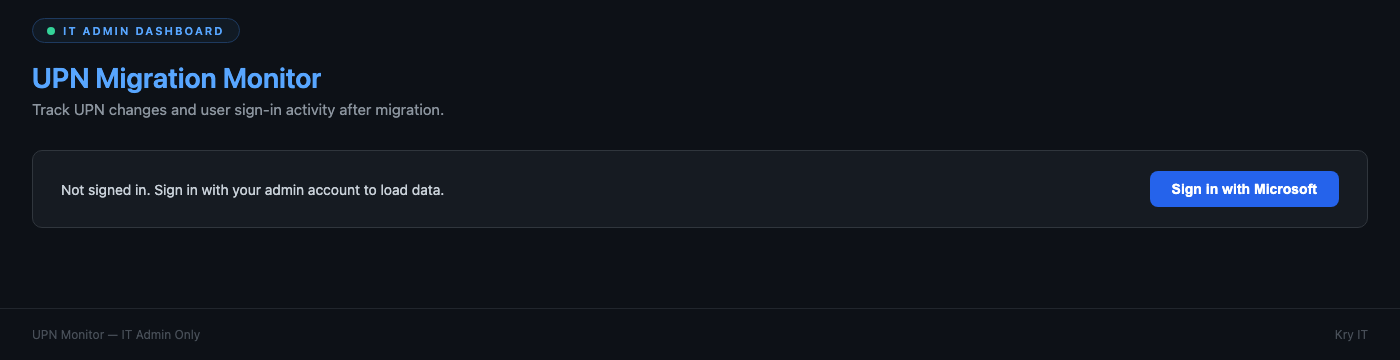
OneDrive Device Remediation After UPN Change
Even after a successful migration, OneDrive caches the old UPN in the Windows registry. That means broken sync, red X overlays on files, and clinicians thinking their documents are gone. I wrote an Intune Proactive Remediation script that detects the stale config and resets it – deployed to every affected device in user context.
The production version added two patterns worth noting: a registry “breadcrumb” that made each remediation idempotent – run it twice, it skips the second time – and a workaround for the Intune runRemediationScript API bug that prevented the remediation script from reliably executing. The fix: put the remediation logic inside the detection script itself.
# --- INTUNE: OneDrive UPN Fix (PRODUCTION) ---
# Forces OneDrive re-auth after UPN migration (x.kry.se -> kry.se)
# Fix runs in detection script to bypass runRemediationScript API bug.
# Uses a registry breadcrumb to run only once per device.

$regPath = "HKCU:\Software\Microsoft\OneDrive\Accounts\Business1"
$breadcrumb = "HKCU:\Software\OrgIT\OneDriveUPNFix"

# Already remediated on a previous run? Skip.
if (Test-Path $breadcrumb) {
    $fixed = Get-ItemProperty -Path $breadcrumb -ErrorAction SilentlyContinue
    Write-Output "Already remediated on $($fixed.FixedAt). Old: $($fixed.OldEmail). Skipping."
    exit 0
}

# No OneDrive Business config? Nothing to fix.
if (-not (Test-Path $regPath)) {
    Write-Output "OneDrive Business account not configured - skipping"
    exit 0
}

$email = (Get-ItemProperty -Path $regPath -Name "UserEmail" -ErrorAction SilentlyContinue).UserEmail

# Already on the new UPN? Mark done and skip.
if ($email -and $email -match '@kry\.(se|no)$' -and $email -notmatch '@x\.kry\.(se|no)$') {
    Write-Output "OneDrive already on new UPN: $email - no fix needed"
    New-Item -Path $breadcrumb -Force | Out-Null
    Set-ItemProperty -Path $breadcrumb -Name "OldEmail" -Value "n/a (already correct)"
    Set-ItemProperty -Path $breadcrumb -Name "NewEmail" -Value $email
    Set-ItemProperty -Path $breadcrumb -Name "FixedAt" -Value (Get-Date -Format "yyyy-MM-dd HH:mm:ss")
    Set-ItemProperty -Path $breadcrumb -Name "Action" -Value "none - already correct"
    exit 0
}

# Stale or unknown UPN — reset OneDrive
Write-Output "Stale/unknown OneDrive account: $email - resetting..."

$odProcesses = Get-Process -Name "OneDrive" -ErrorAction SilentlyContinue
if ($odProcesses) {
    Write-Output "Stopping OneDrive..."
    Stop-Process -Name "OneDrive" -Force
    Start-Sleep -Seconds 3
}

if (Test-Path $regPath) {
    Write-Output "Removing old account config..."
    Remove-Item -Path $regPath -Recurse -Force
}

$identityPath = "HKCU:\Software\Microsoft\OneDrive\Accounts\Business1\Tenants"
if (Test-Path $identityPath) {
    Remove-Item -Path $identityPath -Recurse -Force
}

$onedrivePath = Join-Path $env:LOCALAPPDATA "Microsoft\OneDrive\OneDrive.exe"
if (-not (Test-Path $onedrivePath)) {
    $onedrivePath = "C:\Program Files\Microsoft OneDrive\OneDrive.exe"
}
if (-not (Test-Path $onedrivePath)) {
    $onedrivePath = "C:\Program Files (x86)\Microsoft OneDrive\OneDrive.exe"
}

if (Test-Path $onedrivePath) {
    Write-Output "Restarting OneDrive from: $onedrivePath"
    Start-Process $onedrivePath
} else {
    Write-Output "WARNING: OneDrive executable not found"
}

# Leave breadcrumb so we don't run again
New-Item -Path $breadcrumb -Force | Out-Null
Set-ItemProperty -Path $breadcrumb -Name "OldEmail" -Value ($email ?? "unknown")
Set-ItemProperty -Path $breadcrumb -Name "FixedAt" -Value (Get-Date -Format "yyyy-MM-dd HH:mm:ss")
Set-ItemProperty -Path $breadcrumb -Name "Action" -Value "reset"

Write-Output "OneDrive reset complete. Was: $email. Breadcrumb written."
exit 0Two quiet Mondays.
Norway went live W21. Sweden one week later, W22. Both on schedule, both over a weekend, both without a single lockout. By Tuesday morning, 80% of users had signed in with their new username – most before they'd even noticed anything changed.
We tagged every ticket related to the migration in the support desk so we could measure impact cleanly. Sweden generated 23 tagged tickets, mostly forgotten passwords and “which email do I use now?” questions. Norway generated one. For context, vendor guidance for a domain migration of this size typically estimates 5–10% of users raising tickets – that would have been 75–150. We landed at 1.6%. The hub, the comms waves, and the pre-migration SSPR audit absorbed the rest before they became tickets.
Ten test users. Nine comms channels. ~6,000 messages. 25+ apps audited. And what the clinicians saw was four calm pages and a Monday morning that worked.
The hub stayed up for a month, then quietly retired.